IPSW · iOS
iOS 16.0 beta 3 IPSW Download (20A5312g)
Build 20A5312g, released July 6, 2022 — restore images for 23 iPhones, straight from Apple's servers.
Choose your iPhone
23 devices. Each row is one file on Apple's CDN.

iPhone14,6 6.16 GB

iPhone14,5 6.37 GB
iPhone14,4 6.37 GB
iPhone14,2 6.49 GB
iPhone14,3 6.49 GB
iPhone13,1 6.33 GB
iPhone13,4 6.45 GB
iPhone13,2 6.51 GB
iPhone13,3 6.51 GB
iPhone12,8 6.05 GB
iPhone12,1 6.09 GB
iPhone12,3 6.22 GB
iPhone12,5 6.22 GB
iPhone11,8 6.16 GB
iPhone11,2 6.31 GB
iPhone11,6 6.31 GB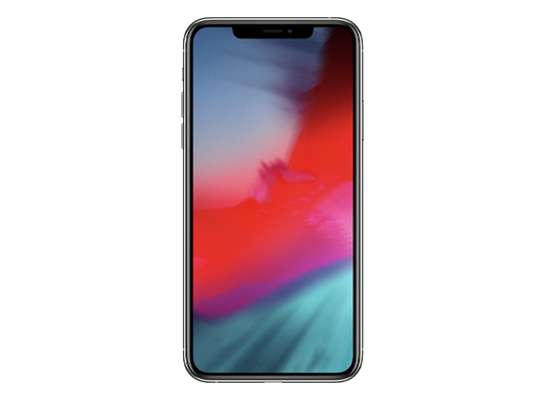
iPhone11,4 6.31 GB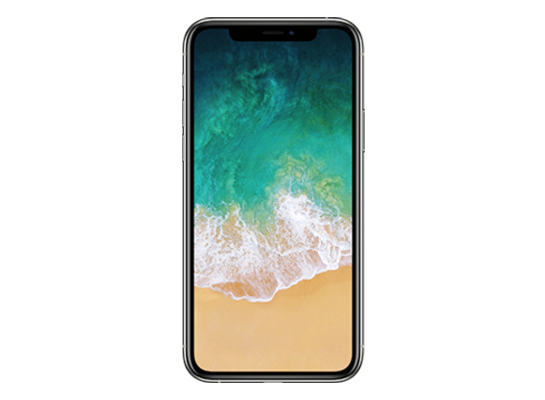
iPhone10,3 5.90 GB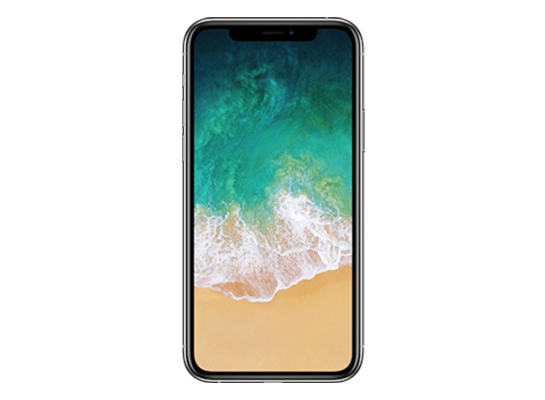
iPhone10,6 5.90 GB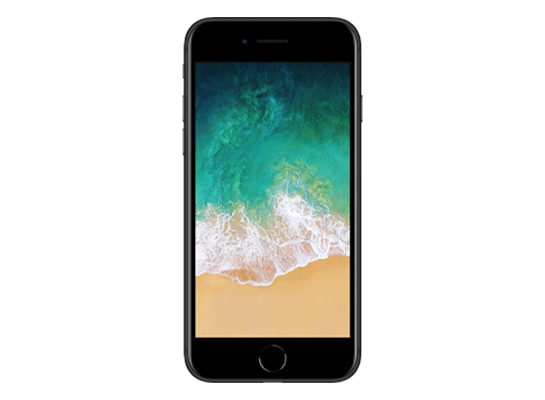
iPhone10,1 5.77 GB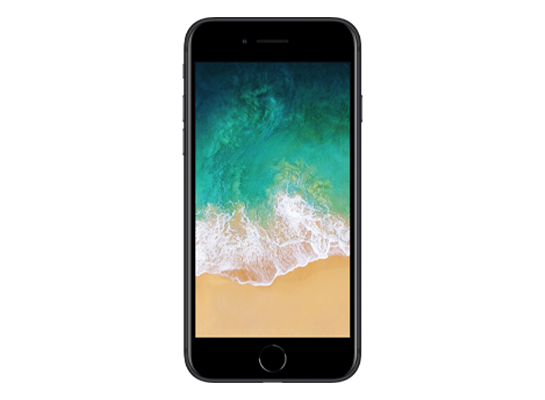
iPhone10,4 5.77 GB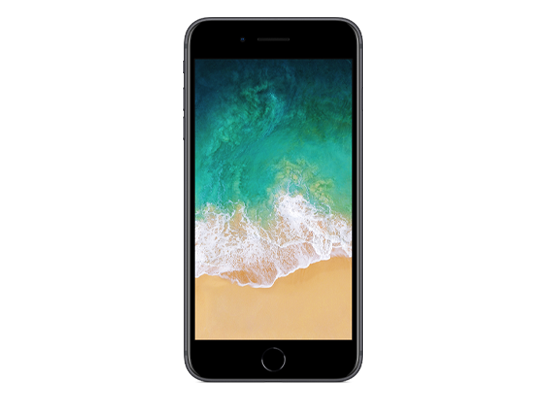
iPhone10,2 5.89 GB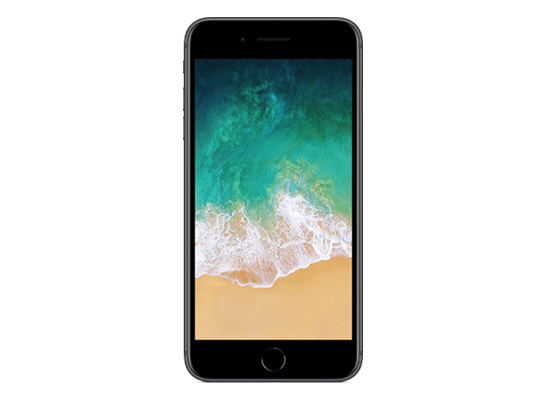
iPhone10,5 5.89 GBNo device matches.
20A5312gHow to install iOS 16.0 beta 3 from the IPSW
Four steps, and the one that matters most is the first.
Back up first
A restore erases the device. Make an archived backup in Finder or the Apple Devices app — an iCloud backup taken on a newer version cannot be restored onto an older one. Our backup guide covers the difference.
Get the file for your exact model
Check Settings → General → About → Model Name, then download the IPSW for that device. The download shows the file size; compare it with the SHA-256 under Details if you want to be certain the file is intact.
Restore in Finder or Apple Devices
Connect with a cable, select the device, then hold Option (Mac) or Shift (Windows) and click Restore to choose the .ipsw. Update keeps your data but only works upward; Restore erases and is how you downgrade.
Set up or restore your backup
After the restore the device starts fresh. Restore the backup you made — only if it came from the same or an older version than the one you just installed.
Questions? Answers.
Can I restore iOS 16.0 beta 3 today?
Not at the moment — Apple has stopped signing 20A5312g, so a restore will be rejected at the final step. The files remain here for reference and for signed re-releases.
Which is the right file for my device?
Match the identifier in Settings → General → About (or under the model's name here) against the one on each row. Wi-Fi and Cellular iPads share a file; different generations never do. Restoring the wrong device's IPSW simply fails — it cannot damage the device.
What does "signed" mean?
Apple's servers must approve a firmware before a device will accept it, and Apple only approves the builds it is currently shipping. A signed file can be restored today; an unsigned one is rejected at the end of the process, however you obtained it. Signing status changes without notice, usually within days of a newer release, which is why this catalogue rechecks it automatically.
Will I lose my data?
A Restore erases the device — that is what makes a downgrade possible. An Update with an IPSW keeps your data, but only when moving to a newer version. Either way, make an archived backup on a computer first; an iCloud backup taken on a newer version will not restore onto an older one.