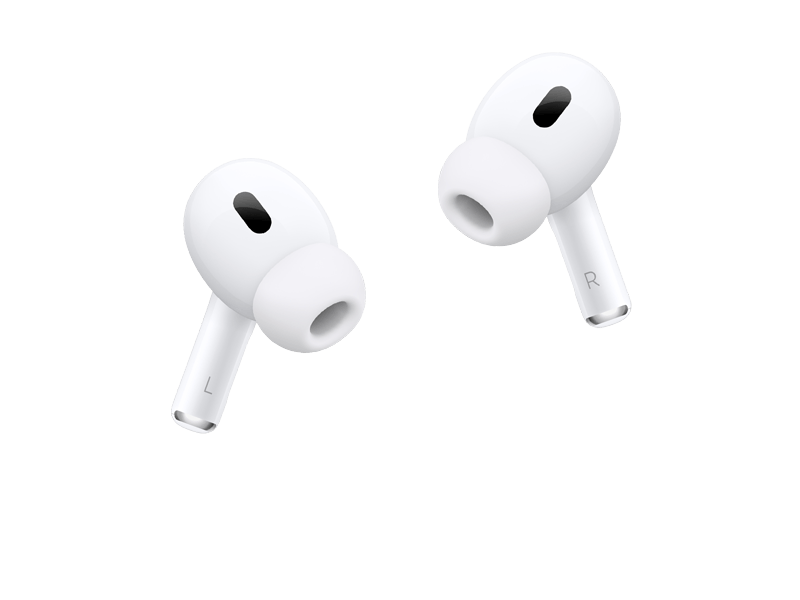
AirPods get their new tricks — better noise cancellation, new head gestures, live translation improvements — through firmware, and Apple runs a beta channel for it just like iOS. Unlike iOS, though, firmware installs on the AirPods' own schedule: you enable the channel, park the case near your iPhone, and let it happen.
This guide covers enrolling, coaxing the update along, verifying the version, and the one big caveat: there is no way back to older firmware.
To see which firmware each AirPods model is on today, the current AirPods firmware list is checked against Apple's automatically.
What you'll need
Supported AirPods
Recent AirPods Pro and AirPods (4th generation) models receive the 9.x beta line. Older models get maintenance firmware only.
iPhone on the current iOS beta
AirPods beta firmware requires a paired iPhone running the matching iOS beta with a developer-enrolled Apple Account.
Charging case + power
Firmware installs while the AirPods sit in a charging case near the connected iPhone.
Step-by-step
-
1Enable beta firmware updates
With the AirPods connected, open Settings on the iPhone, tap the AirPods entry at the top, scroll to Version and tap it five times? No — the modern way: Settings > AirPods > Beta Updates toggle, visible when your Apple Account is developer-enrolled and the iPhone runs the iOS beta.
-
2Set up the update conditions
Put both AirPods in the case, keep the case charging (cable or Qi), and leave the paired iPhone on Wi-Fi within Bluetooth range. Updates trigger automatically in this state — usually within the hour.
-
3Verify the firmware version
Settings > AirPods > About (or Settings > General > About > AirPods). Compare the version string with the latest beta build listed on our homepage.
-
4Re-test your audio features
ANC, Transparency, Conversation Awareness and gesture controls after each firmware — beta firmware occasionally resets feature toggles to defaults.
After installing
There's no progress bar for firmware updates — they finish silently. If the version hasn't changed after a few hours, the classic nudge is: play 30 seconds of audio, back in the case, lid closed, keep charging, wait 30 minutes.
Troubleshooting
Beta Updates toggle doesn't appear for my AirPods
All three conditions must hold: supported AirPods model, iPhone on the current iOS beta, developer-enrolled Apple Account. The toggle vanishes if any one lapses.
Firmware refuses to update for days
Forget the AirPods (Settings > AirPods > Forget), re-pair, re-enable the beta toggle, and leave them charging next to the phone overnight. This resets the update scheduler.
Crackling or dropouts on beta firmware
Toggle ANC modes and reconnect first; if it persists, it's firmware-level — report via Feedback Assistant and expect a fix in the next build. There's no rollback.
Before You Start: What This Actually Involves
There is no profile to download and no file to find. Apple removed configuration profiles from the beta process in iOS 16.4, and AirPods firmware 9.0 is enrolled through your Apple Account instead — you sign in once in a browser, then pick the channel on the device itself. Anything offering you a "AirPods firmware 9.0 beta profile" download is offering something that has not existed for years, and our piece on those files explains what they usually contain instead.
Enrolment is free on both channels. The developer channel receives each build first; the public channel gets a later, more settled build two to three weeks behind. On a device you depend on, that lag is a benefit rather than a cost — the builds carrying the serious regressions have already been replaced by the time the public channel sees them.
Can Your Device Run AirPods firmware 9.0?
Being on the compatibility list and getting every feature are two different questions. Apple Intelligence in particular is gated well above the compatibility floor. A device can be fully supported and still show none of it.
Our compatibility checker answers both questions for your exact model in one step. If your model has reached its last version, staying current on that version is a supported position rather than a dead end.
Getting Back Out
Turning off Beta Updates stops new builds but leaves you on the one you have until the finished release overtakes it. To go back sooner you need a recovery-mode restore from a signed IPSW, which erases the device — so the archived backup you make before installing is the only route back with your data. An iCloud backup taken on the beta cannot be restored onto the older version.
Our guide to leaving the beta program covers every device, and the backup guide explains the difference between a backup that works as an escape route and one that does not.
Frequently asked questions
Can I downgrade AirPods firmware?
No. Apple provides no user-facing downgrade for any AirPods firmware, beta or stable. Factory reset reinstalls the same version.
Do I need the public beta or developer beta?
AirPods beta firmware currently ships through the developer program only — the iPhone needs the developer beta channel enabled.
How do I leave the firmware beta?
Turn off the Beta Updates toggle in the AirPods settings. Your AirPods keep the current beta firmware until the next stable release supersedes it.