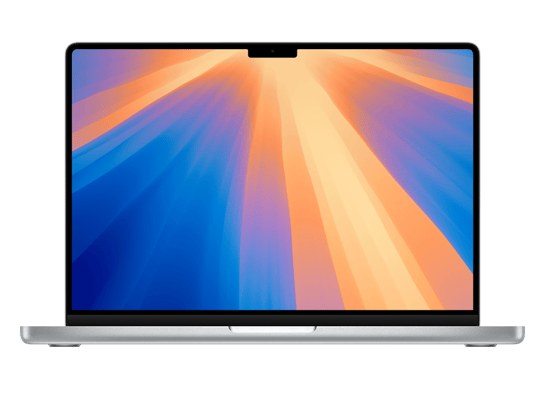
Does the MacBook Pro (M4) Support macOS 27?
Yes — the MacBook Pro (M4) is on Apple's macOS 27 compatibility list, so it can run the macOS 27 beta. It shipped with macOS 15, which means macOS 27 is another major version running on the same M4, M4 Pro or M4 Max hardware. On past form this model has a long road ahead — five or more major versions beyond macOS 27 is a reasonable expectation for hardware this recent.
Being on the list and getting every feature are two different things, though. Every macOS 27 feature ships to the M4 MacBook Pro on day one, including all Apple Intelligence capabilities and the largest external-display configurations.
How to Install the macOS 27 Beta on the MacBook Pro (M4)
There is no beta profile to download — Apple removed configuration profiles from the process in 2023. Enrol your Apple Account free at beta.apple.com (public beta) or developer.apple.com (developer beta), then open System Settings → General → Software Update → Beta Updates on your MacBook Pro (M4), sign in with the same Apple Account and select macOS 27 Public Beta or macOS 27 Developer Beta.
The beta then appears in Software Update like any ordinary update. Download it over Wi-Fi with the Mac plugged into power, and let the first-boot indexing pass finish before judging how it runs. Our full macOS 27 install guide walks through every step with screenshots.
MacBook Pro (M4) Specifications That Matter for the Beta
The MacBook Pro (M4) launched in 2024 with the M4, M4 Pro or M4 Max, 16 GB to 128 GB of memory, a 14-inch or 16-inch Liquid Retina XDR display and storage options of 512 GB to 8 TB. Three of those numbers decide how a beta behaves on it: the chip sets raw speed, the memory decides how many apps survive in the background, and the free space determines whether the installer will even start.
The best beta machine Apple sells. If a macOS 27 beta feels slow on an M4 Pro or Max, the cause is a software bug rather than the hardware.
What the MacBook Pro (M4) Gets in macOS 27 — and What It Doesn't
Apple Intelligence is fully supported on the MacBook Pro (M4). The M4, M4 Pro or M4 Max and its 16 GB to 128 GB of memory clear Apple's on-device model requirement, so the writing tools, image features, notification summaries and the expanded Siri all appear in Settings after you install.
Everything else in macOS 27 — the interface changes, the new Settings layout, Control Centre, Messages, Photos, Safari and the system apps — installs and works on the MacBook Pro (M4) exactly as it does on current hardware. Feature-by-feature availability across every model is on our supported devices page.
Performance and Battery on the MacBook Pro (M4)
Large batteries and efficient silicon mean beta drain is barely measurable here compared with an Air. On the thermal side, actively cooled, so beta indexing and Apple Intelligence model downloads never throttle the machine.
The pattern is consistent across every device: the first two to three days after a beta install look far worse than the software actually is, because Spotlight is reindexing, Photos is re-analysing your library and iCloud is re-syncing all at once. If it has not settled after four days, our battery drain fix guide covers the settings that actually help.
Before You Install a Beta on Your MacBook Pro (M4)
Make an archived backup first — on a Mac that means a Time Machine snapshot to an external drive, taken before you install. An iCloud backup made on macOS 27 cannot be restored onto macOS 26, so it is not a route back. Our backup guide explains the difference in detail.
Check free space too. A macOS 27 beta wants roughly 40 GB free before it will begin, which is more than the download size suggests. If you depend on this Mac for work, consider whether the public beta channel suits you better than the developer channel.
How to Get Back to macOS 26 on the MacBook Pro (M4)
Leaving a macOS beta means turning off Beta Updates in System Settings and then erasing and reinstalling macOS 26 through Recovery, restoring your data from the Time Machine snapshot you made beforehand. There is no in-place downgrade on macOS.
If you simply want to stop receiving new betas without erasing anything, set Beta Updates to Off and stay where you are until the finished macOS 27 release arrives and overtakes your build. Our guide to leaving the beta program covers both routes.
Frequently Asked Questions
Can the MacBook Pro (M4) run macOS 27?
Yes. The MacBook Pro (M4) is on Apple's macOS 27 compatibility list and can install both the developer and public beta through System Settings → General → Software Update → Beta Updates.
Does the MacBook Pro (M4) support Apple Intelligence in macOS 27?
Yes. The M4, M4 Pro or M4 Max with 16 GB to 128 GB of memory meets Apple's requirement, so every Apple Intelligence feature is available on the MacBook Pro (M4).
Is there a macOS 27 beta profile for the MacBook Pro (M4)?
No. Apple removed beta profiles in 2023. Beta access is now tied to your Apple Account: enrol free at beta.apple.com, then choose the channel in System Settings → General → Software Update → Beta Updates.
How much free space does the macOS 27 beta need on the MacBook Pro (M4)?
Around 40 GB free, which is considerably more than the download size. The MacBook Pro (M4) ships in 512 GB to 8 TB configurations, so check the smallest one carefully before you start.
Will the beta hurt battery life on the MacBook Pro (M4)?
Temporarily, yes. Large batteries and efficient silicon mean beta drain is barely measurable here compared with an Air.